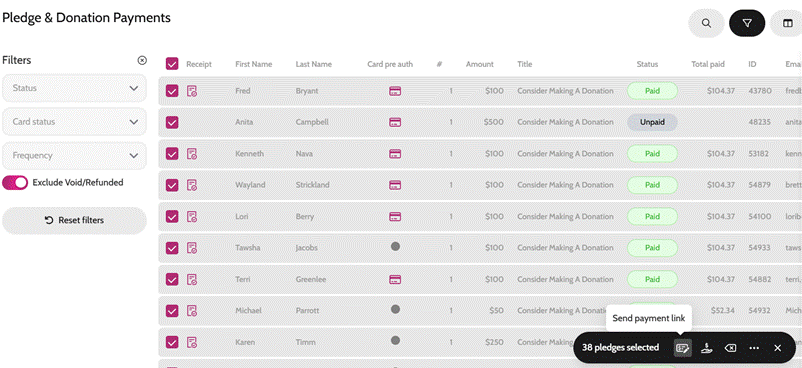
First you need to create pledge levels by following the steps here - Creating a pledge/donation
- Leave them inactive so they remain hidden from guest view but allows admins to clerk in paddle numbers quickly.
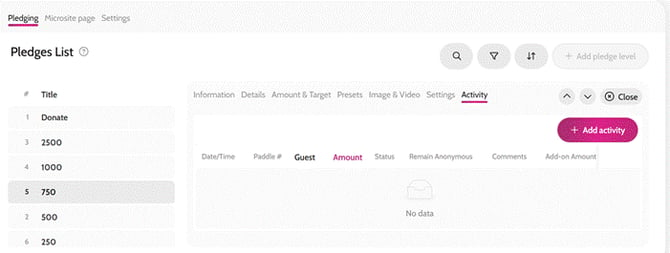
Once paddle numbers have been written down, navigate to All Pages > Pledge/Donate page:
- Click into the appropriate level (example: $750 level)
- Navigate to the Activity subtab
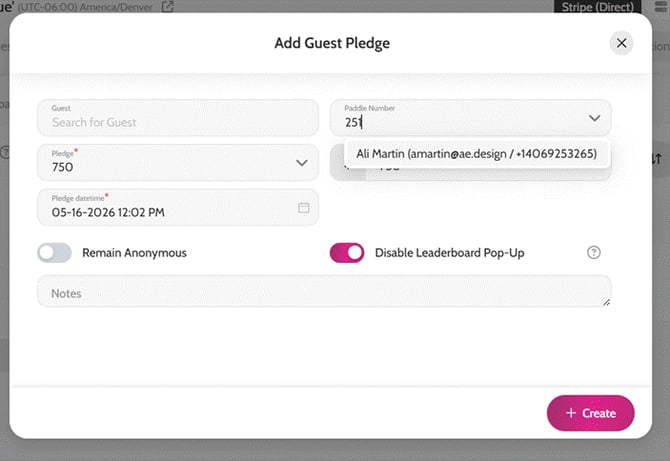
- Click Add Activity
- Type in the paddle number – the system will auto-populate the guest information
- Click Create
Adding donations using paddle numbers:
Sending Payment Links/charging cards for the donations you have just entered
- Go to Payments > Pledges & Donations
- Filter By Unpaid
- Select required pledges
- Select either send Payment links or Collect payments on the black bulk action pill
**Guests who have a card on file, that could be charged, will show a card icon under the Card pre-auth column. If they do not have an icon there, then they do not have a card on file and payment link will need to be sent to them.
Payments > Pledges & Donations
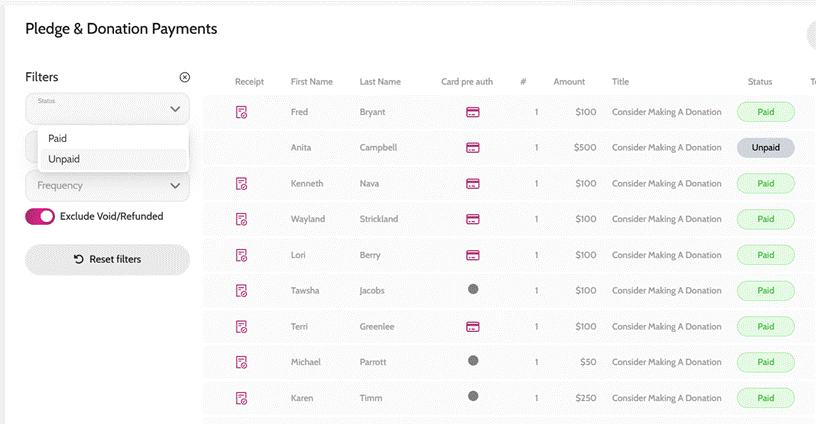
Selecting unpaid pledges to send payment link or collecting payments