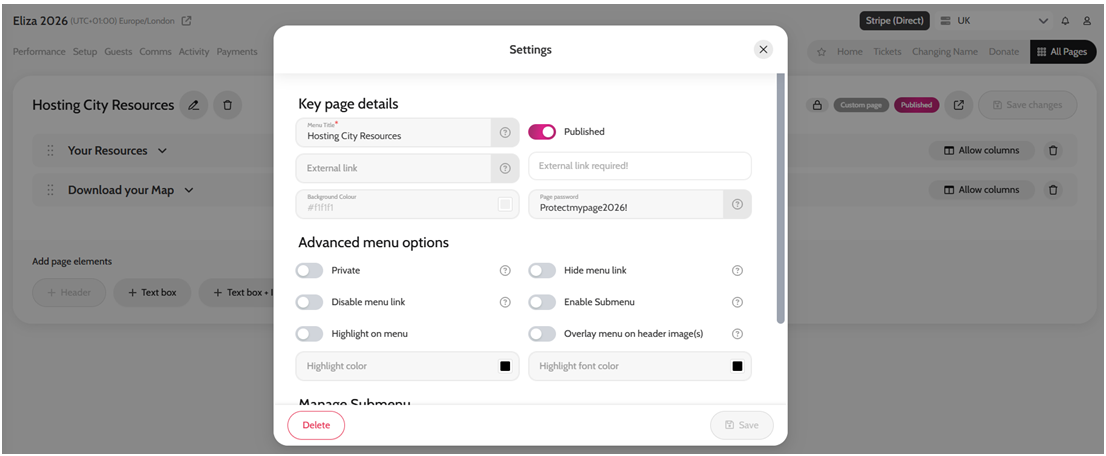
- Go to the All Pages menu
- Click on the page you would like to create a password for
- Click the Edit pencil icon next to the microsite page title
*If you are password protecting a functionality page e.g Prize Draw, click Prize Draw from the All Pages Menu and navigate to the Microsite page section, where you will find the Edit Pencil Icon.
- Enter a password in the Page Password field
*This can be any length and can include letters, numbers, symbols
- Click Save
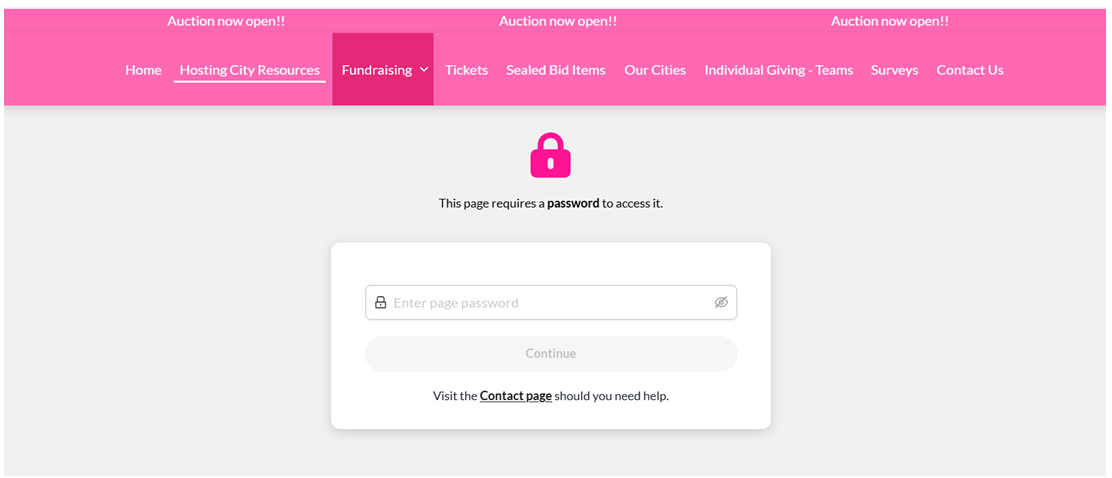
Your microsite page is now password protected. You can share the password with select guests via a custom communication in Emma, or your own mailing list.
Creating a password for your microsite pages