- Go to All pages > ALL Auction Items
- Select all items using the tick box at the top on the left
- Then scroll down to bulk action and select Update End Date/Time > click Now (or choose the time the auction will close if you know it) > Save (this will close the bidding on auction items)
* You can skip this step if you have already set the end time for your auction items when setting them live.
To make winners and manually send payment links for all outstanding activity including the silent auction items:
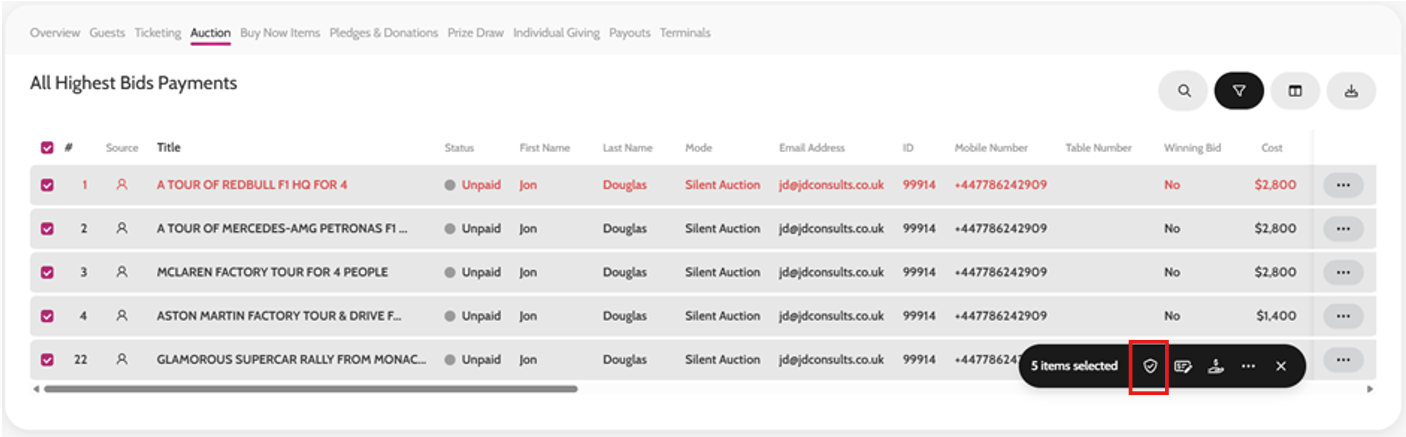
- Go to Payments > Auction
- Filter by All Highest Bids
- Select all items using the tick box at the top (left of item number)
- Click Make Winner
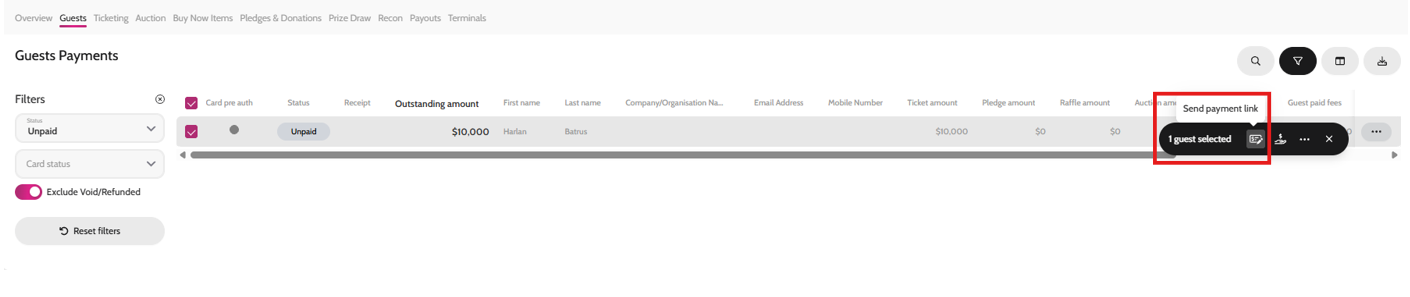
- Go to Payments > Guests
- Filter by Unpaid > Select all
- Click on Send payment links on the bulk action pill
- This will then send out the communication template ‘Guest Pay Link’ to your guests with a payment link to pay for all their unpaid activity
- You can see once a payment has been made as it will appear with a reference in the Ref column and the status will change to Paid
Make winner
Send payment link