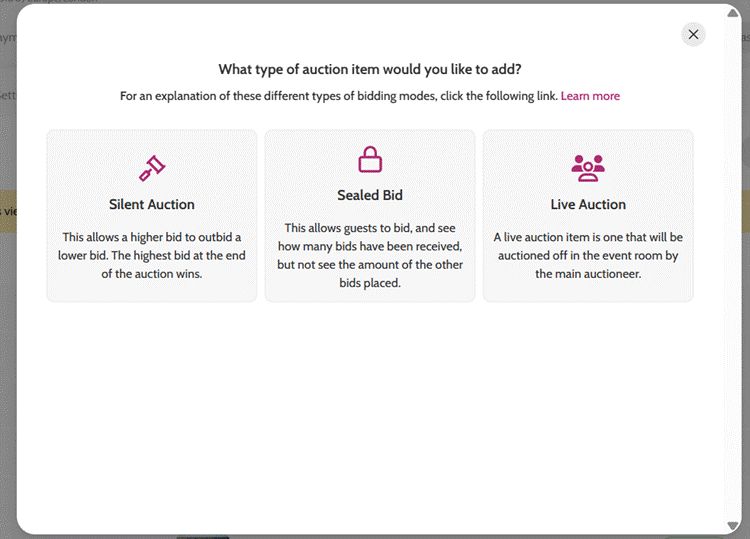
- Click the + button in the top bar, next to All Pages
- Choose Add guest, Add activity or Add auction item
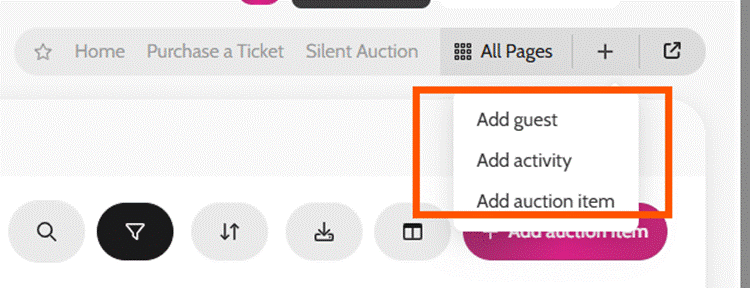
To add a guest
- Complete the Key Guest Information. First name and Last name are required
- Please note: you can also add a title, email address, mobile number, company, job title, paddle number, system password and PIN.
- Complete any Custom Information fields
- Click Add
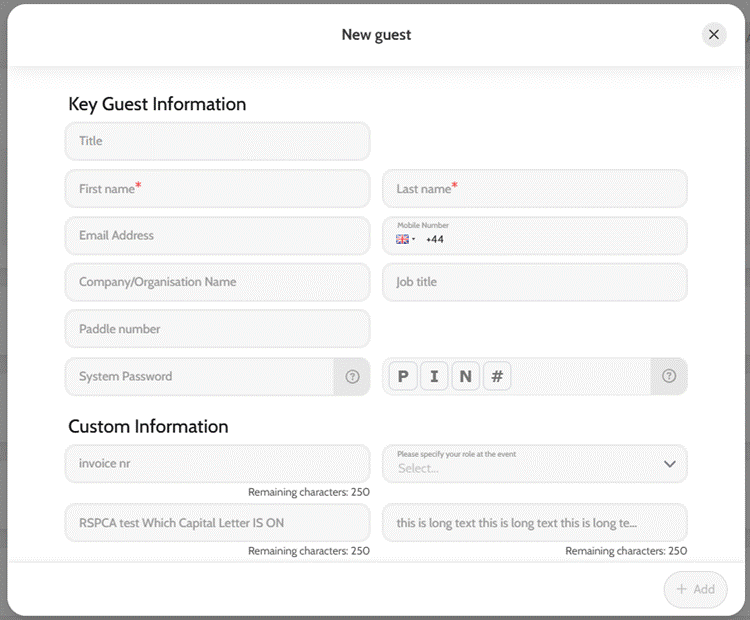
To add an activity
- In Guest Details, search for the guest in the Guest field
- Please note: you can also search by paddle number. If the guest is not listed, click Add new guest.
- Click Select activity and choose the activity
- Turn on Guest Pays Fees if the guest is covering the processing fee
- Check the Processing Fee and Total
- Click Save Activity
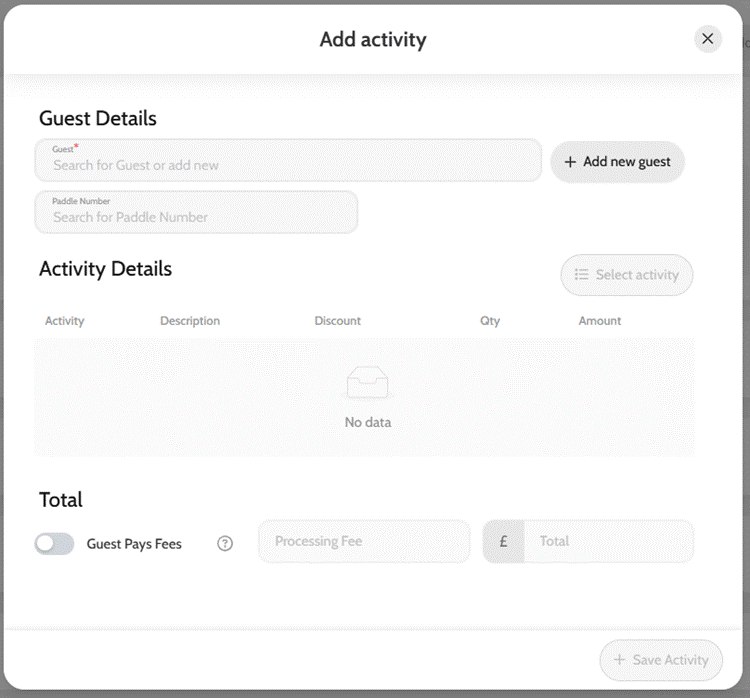
To add an auction item
- Select the bidding mode: Silent Auction, Sealed Bid or Live Auction
- Please note: a Silent Auction allows a higher bid to outbid a lower one, and the highest bid at the end wins. A Sealed Bid allows guests to bid and see how many bids have been received, but not the amount of the other bids. A Live Auction item is auctioned off in the event room by the main auctioneer.
- Complete the required fields on the next page