- Go to Comms > Log
- Click Send New
- Select Ticketing tab > click on the E-ticket distribution template
- Check the email and SMS one final time to ensure it is the desired wording or amend them in Communication Templates
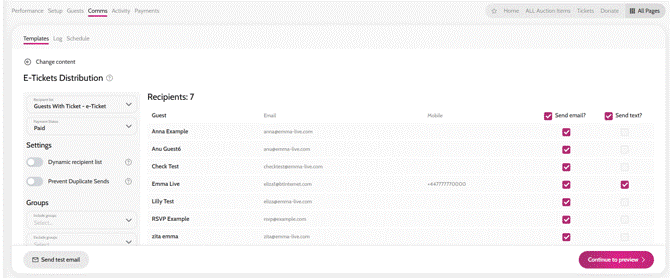
- Click on the Select Recipients button > the required recipient list will be defaulted to the correct template (Guests With Ticket – e-Ticket)
- Note: it is vital that you select this recipient list as this is what determines the e-tickets being attached
- Payment Status Filter: This filter will be defaulted to Paid (only guests who have paid tickets will appear in the recipient list). You can change this filter to All if you want to send e-tickets to both paid and unpaid ticket holders.
- If you are using the RSVP functionality, you will see an RSVP Status Filter: This filter will be defaulted to All. If you only want to send e-tickets you have RSVP’d Yes, you can select Yes from the dropdown.
- You will then be able to view the Recipients, and you can unselect any guests if necessary
- Click on the Continue to preview button
- Click ‘Send’ > click ‘Send’ again to confirm
The communication will be sent out within 5-10 minutes and will appear in the Log.
E-ticket communication template
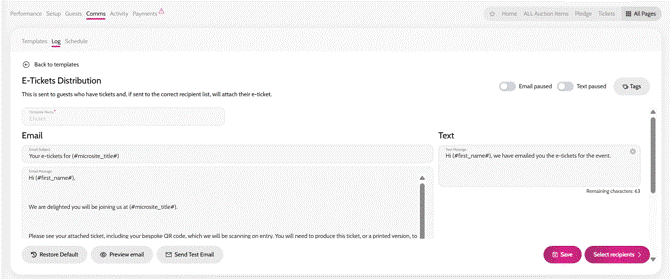
E-ticket recipient list