- Navigate to the All Pages menu
- Click on the page you would like to edit
- Navigate to the Microsite Page tab *Please note, for the home page and custom pages, you can skip this step
- Click the Edit (pencil) icon next to the microsite page title
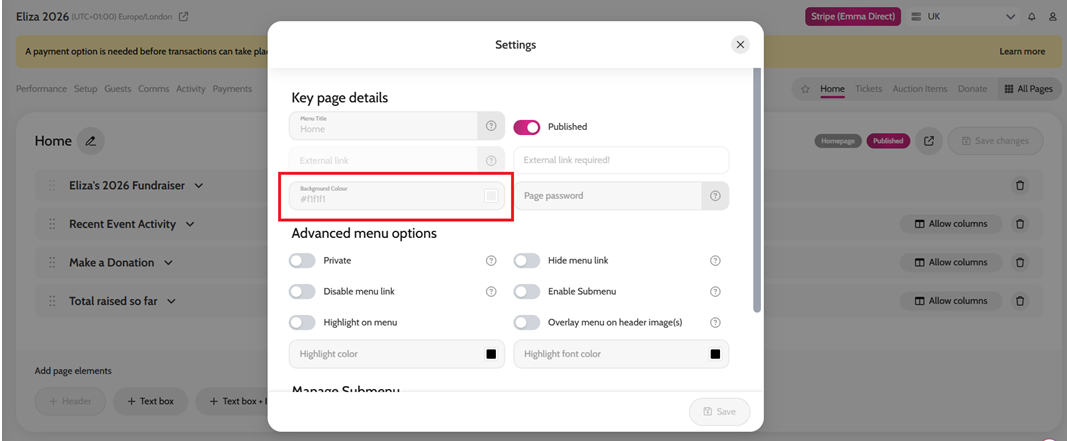
- In the page settings, locate the Background Colour field
- Select your preferred background colour and click Save
We recommend using custom background colours only on your Homepage and custom pages, while keeping functionality pages (e.g. auction and donation pages) neutral to provide the best user experience.
Changing the Background Colour of a microsite page