- Go to All Pages
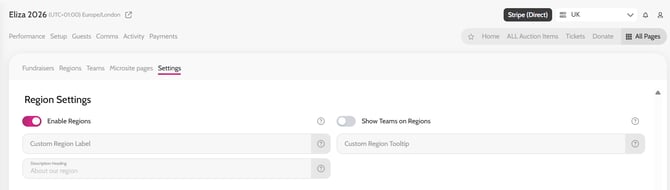
- Click Individual Giving – Fundraisers
- Click Settings
- Scroll to Region Settings and toggle on Enable Regions
- Once you have toggled on Enable Regions, Regions will appear on your Individual Giving submenu next to Fundraisers and Teams
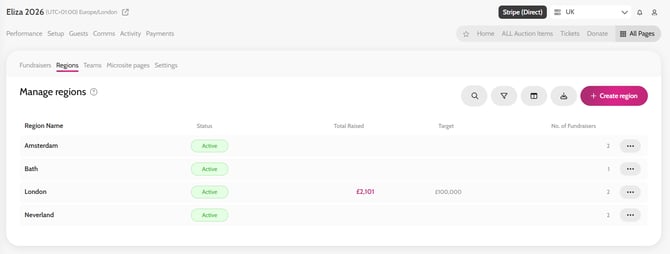
To create your Regions:
- Go to the Regions tab
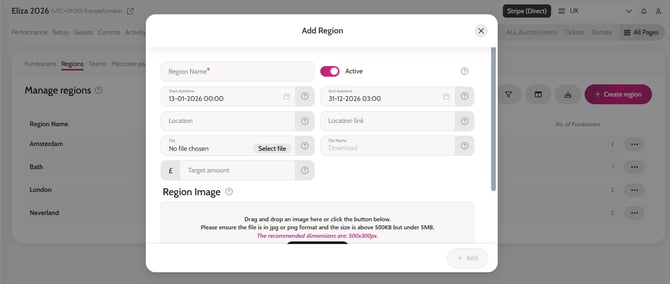
- Click Create region
- Add a Region Name e.g. London
- You can also add a Location Name, Location Link, Date/Time, Image, Description and File e.g. a map that can be downloaded
To show the Regions page on your microsite:
- Go to All Pages
- Click Published on the Individual Giving – Regions page
You can re-name the Regions page if you would like to:
- Go to All Pages
- Click Individual Giving – Regions
- Go to the Microsite Pages tab
- Click Individual Giving – Regions
- Click the Edit Pencil icon
- Edit the Menu Title
- Click Save
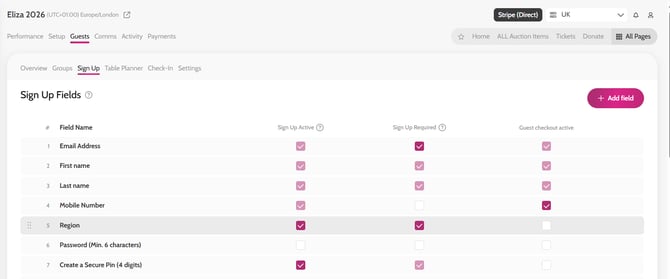
When guests sign up to create their fundraiser page, you can ask them to select their Region:
- Go to Guests
- Click Sign Up
- Scroll to the Region field, and tick the Sign Up Active and Sign Up Required columns
- Once the field has been activated on the sign up form, guests will see a drop-down of Regions to choose from
- Once the guest has selected a Region, their fundraising page will be allocated to that same Region